This guide covers the three steps to get Blue Tracely running on your website: add your domain, install its snippet, and check that it works.
Open the Script page
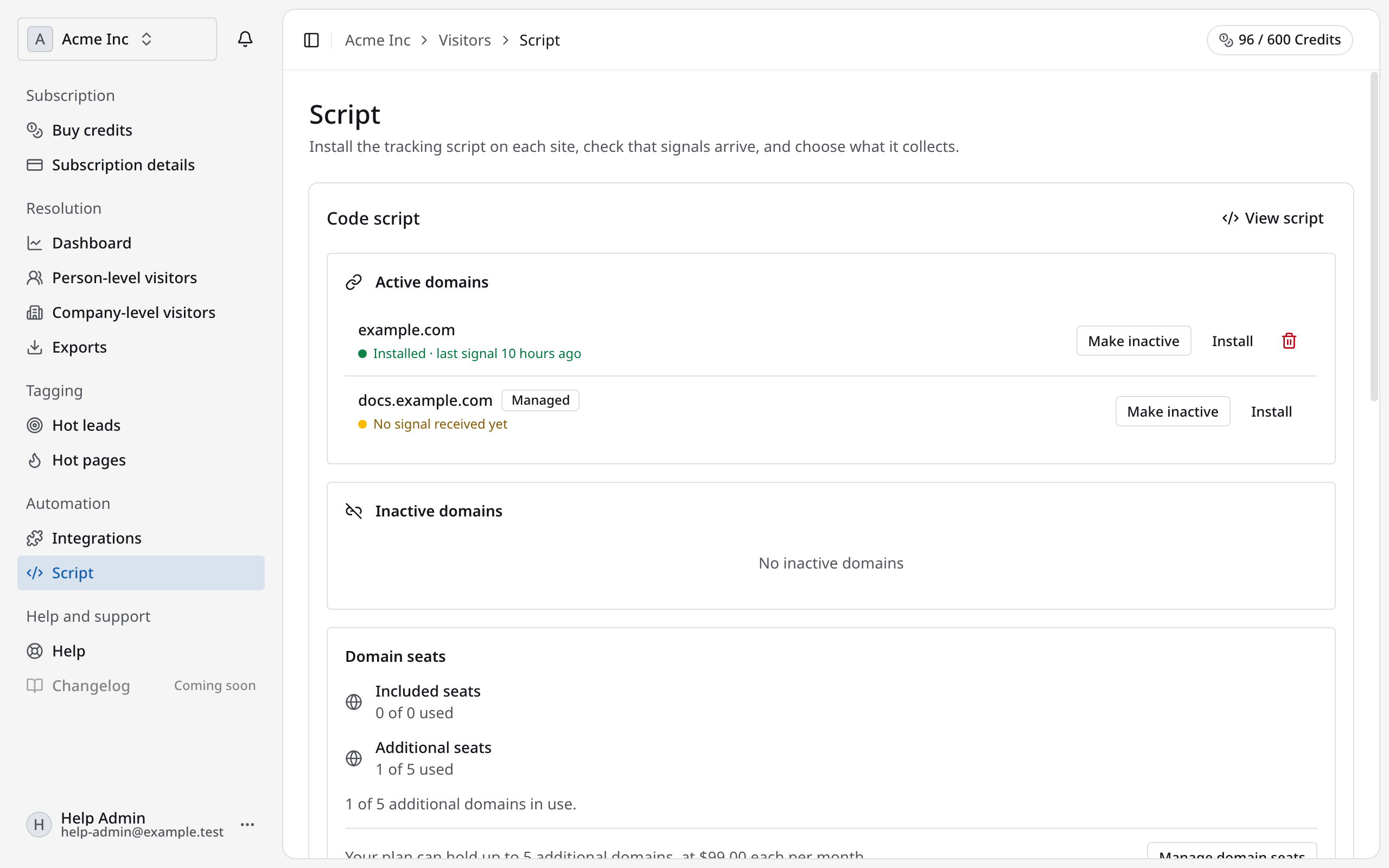
In the sidebar, go to Automation > Script, or open the Script page. This is where you manage your domains and get the snippet for each one.
Add your domain
Each domain has its own snippet, made for that domain only.
- In the Code script card, select Add a Domain.
- Enter your domain, for example
example.com. - Select Add domain.
Only organization owners and admins can add domains.
How your domain is read:
- It's saved without
www., and anything else you paste around it is dropped. Enteringhttps://www.example.com/pricingsavesexample.com. - The script reports visits from
https://example.comandhttps://www.example.comonly. Your pages need to be served over HTTPS. - Other subdomains, such as
blog.example.comorgo.example.com, aren't covered. To identify visitors there, add the subdomain as a domain of its own and install the snippet made for it.
The Domain seats section shows how many domains your plan includes and how many are in use. When you can't add another domain, the message under Add a domain explains why. See Add Multiple Domains to Your Blue Tracely Account.
Your new domain appears under Active domains. If it shows Pending, the script for it isn't live yet: select Check again after a moment.
Install the tracking script
Select Install next to your domain, or View script at the top of the Code script card. The Install the script page offers four ways to install. All of them install the same snippet.
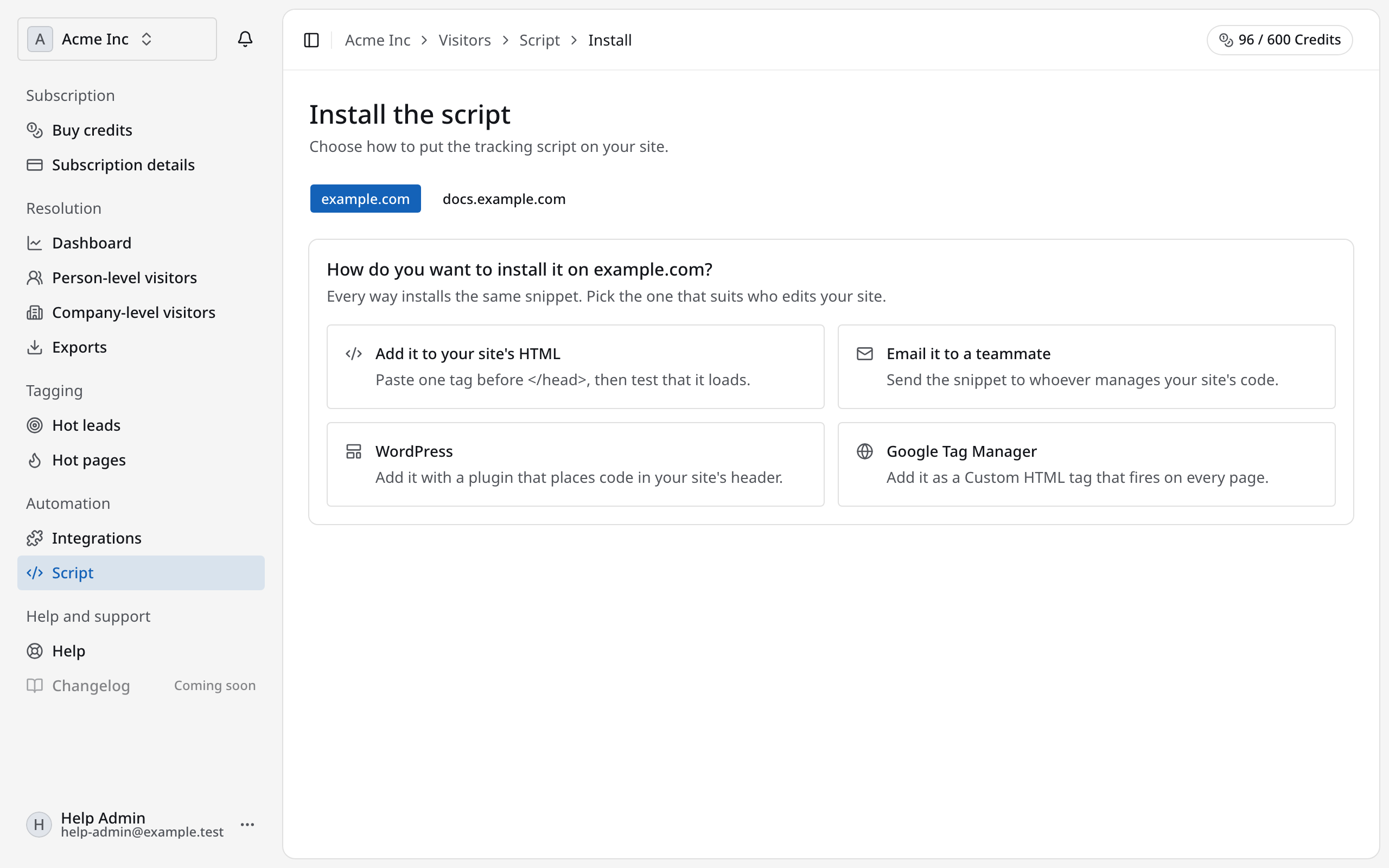
| Option | What you get |
|---|---|
| Add it to your site's HTML | The snippet with a Copy button, where to paste it, and a check that it loads |
| Email it to a teammate | A form that sends the snippet to whoever edits your site's code |
| WordPress | Steps for adding the snippet with a plugin that places code in your site's header |
| Google Tag Manager | Steps for adding the snippet as a Custom HTML tag that fires on every page |
Whichever way you choose, the snippet goes before the closing </head> tag on every page, or in your site's shared header template. Without it, no visitors are reported.
Step-by-step guides for common platforms:
- WordPress and Google Tag Manager
- Website builders: Wix, HubSpot CMS, Squarespace, Webflow, Framer, Shopify, Tilda, Kajabi, Unbounce
- Your own code: HTML files, Next.js, React, TypeScript, Angular
Paste the snippet exactly as the dashboard shows it, once per page. Don't edit it, and don't replace it with a plain script tag that points at the script file. See The Asynchronous Advantage of Blue Tracely's Script.
Sites that change pages without reloading
Some sites built with React, Next.js, Angular and similar frameworks switch pages in the browser without a full page load. The script reports one page view per full page load, so the screens a visitor moves to afterwards aren't reported. Adding the snippet again on each route change doesn't change this: the snippet does nothing when the script is already on the page. See Single Page vs. Multi-Page Sites: A Data Collection Perspective.
Sending the snippet to a teammate
- Select Email it to a teammate.
- Enter their address under Teammate's email.
- Select Send email.
Only organization owners and admins can send it. Delivery depends on email being set up for your workspace: if nothing was sent, the page says so. You can always copy the snippet under Or copy it yourself and send it on your own.
Check the installation (recommended)
Once the snippet is live on your site, check that the script answers:
- On the Script page, select Test script next to your domain. (On the Add it to your site's HTML page, the same check is Check installation.)
- A small window opens your site. Leave it open: it closes on its own once the script has answered.
- When the check succeeds, you'll see "The script is installed on your website."
If your browser blocks the window, allow popups for the dashboard and try again. For any other message, see Troubleshooting: Script Verification Error Messages.
When an owner or admin runs a successful check, a Verified mark appears next to the domain. The check is optional: the script collects visitors whether or not anyone runs it. Once the first visit has been reported, the domain shows Installed · last signal and how long ago it arrived. Until then it shows No signal received yet.
If the check can't find the script
Check these common causes:
- Caching. Your site, a caching plugin or a content delivery network may still serve the old page. Clear those caches, then test again in a private browsing window.
- Unpublished changes. Many website builders only apply custom code after you publish the site.
- The snippet itself. Make sure the whole snippet was pasted, unchanged, only once, and not inside another tag.
- Delayed scripts. Plugins that hold scripts back until the visitor interacts stop the script from answering. See Why WP Rocket's "Delay JavaScript Execution" Can Break Blue Tracely Visitor Identification.
- A Content Security Policy. Your site's policy may block the script. See Troubleshooting: Check for Content Security Policies (CSP) Issues.
- A redirect. If your site sends visitors to a different domain, the check reports that the domain doesn't match.
Best practices
- Add your domain before you install, so you install the snippet made for it.
- Install the snippet on every page, ideally in a shared header template.
- Clear caches and republish after changing your site's code.
- Run Test script again after major changes to your website platform, theme or content delivery network.
- If you use a cookie consent tool, decide how the script should follow it. See Impact of Cookie Acceptance Policies on Tracking Script Performance.
FAQs about script installation
Can I stop the script from running on certain pages?
Yes. In Visitor capture settings on the Script page, under URL restrictions, choose Trigger on all pages, except the URLs listed below. or Only trigger on the URLs listed below., add the paths, and select Save capture settings. See URL Restrictions.
Do I have to run the check?
No. The check helps you confirm your installation, but the script works the same without it.
How soon does Blue Tracely start working?
The script runs on the first page load after the snippet is live and the domain is no longer Pending. It reports a page view no sooner than about 9 seconds after the page loads. How many visitors you see depends on how much traffic your site gets. See The Impact of Script Placement on Profile Collection Efficiency.
Should I install the script on my whole site or on one page?
Your whole site. Each page a visitor opens gives the script another chance to identify them, and a fuller page history for the ones it does.
Can I install it with a builder that only lets me add an embedded HTML box?
Only if that box places the code in the page itself. The script does nothing inside a frame embedded in another page, so an embed that runs in a frame won't work. Use your builder's option for code in the page head instead.
Is installing the script required?
Yes. Blue Tracely can only identify visitors on pages where the snippet is installed.
Do I need to add anything to my site to handle visitor locations?
No. The script and our servers apply the location rules for you. See What is Blue Tracely and how does it work?