This guide shows how to add the Blue Tracely snippet to every page of a Wix site, using Wix's custom code setting.
Before you begin
- Wix only lets you add custom code to a published site with a connected domain. See Wix's guide to embedding custom code on your site.
- The domain on your Script page must be the domain your Wix site is published on. See Installing Your Blue Tracely Tracking Script.
Copy your snippet
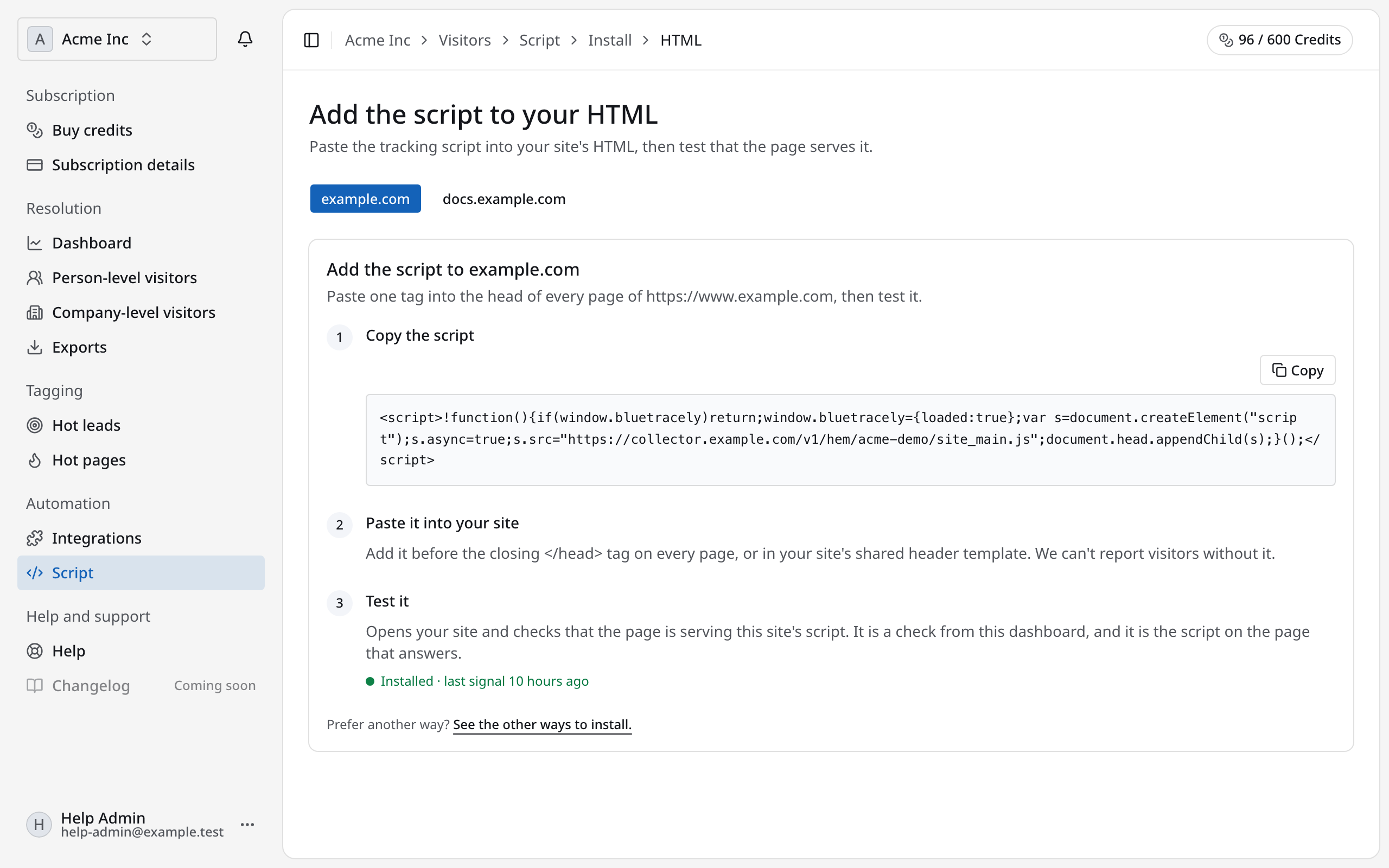
- On the Script page, select Install next to your domain.
- Select Add it to your site's HTML.
- Under Copy the script, select Copy.
Add the snippet in Wix
Follow Wix's custom code guide for the current steps. When you add the code:
- Paste your snippet unchanged, and give it a name you'll recognize, such as "Blue Tracely".
- Add it to All pages.
- Choose to load it on each page your visitor opens, not once per visit.
- Place it in the Head.
- Apply your changes.
Wix's "Embed HTML" element on a page is not the same as custom code: it shows its content in a frame, and the script does nothing inside a frame. Use the site's custom code setting.
Check the installation
Open your site, then go back to the Script page and select Test script next to your domain. When the script answers, you'll see "The script is installed on your website." See Verifying Your Script Installation.
If the check can't find the script, see Installing Your Blue Tracely Tracking Script.