This guide is for websites whose HTML files or templates you edit yourself. You paste one tag into the <head> of every page.
You need access to your website's files and enough familiarity with HTML to edit them safely. If someone else manages your site's code, use Email it to a teammate on the Install the script page instead. See Installing Your Blue Tracely Tracking Script.
Copy your snippet
- On the Script page, select Install next to your domain.
- Select Add it to your site's HTML.
- Under Copy the script, select Copy.
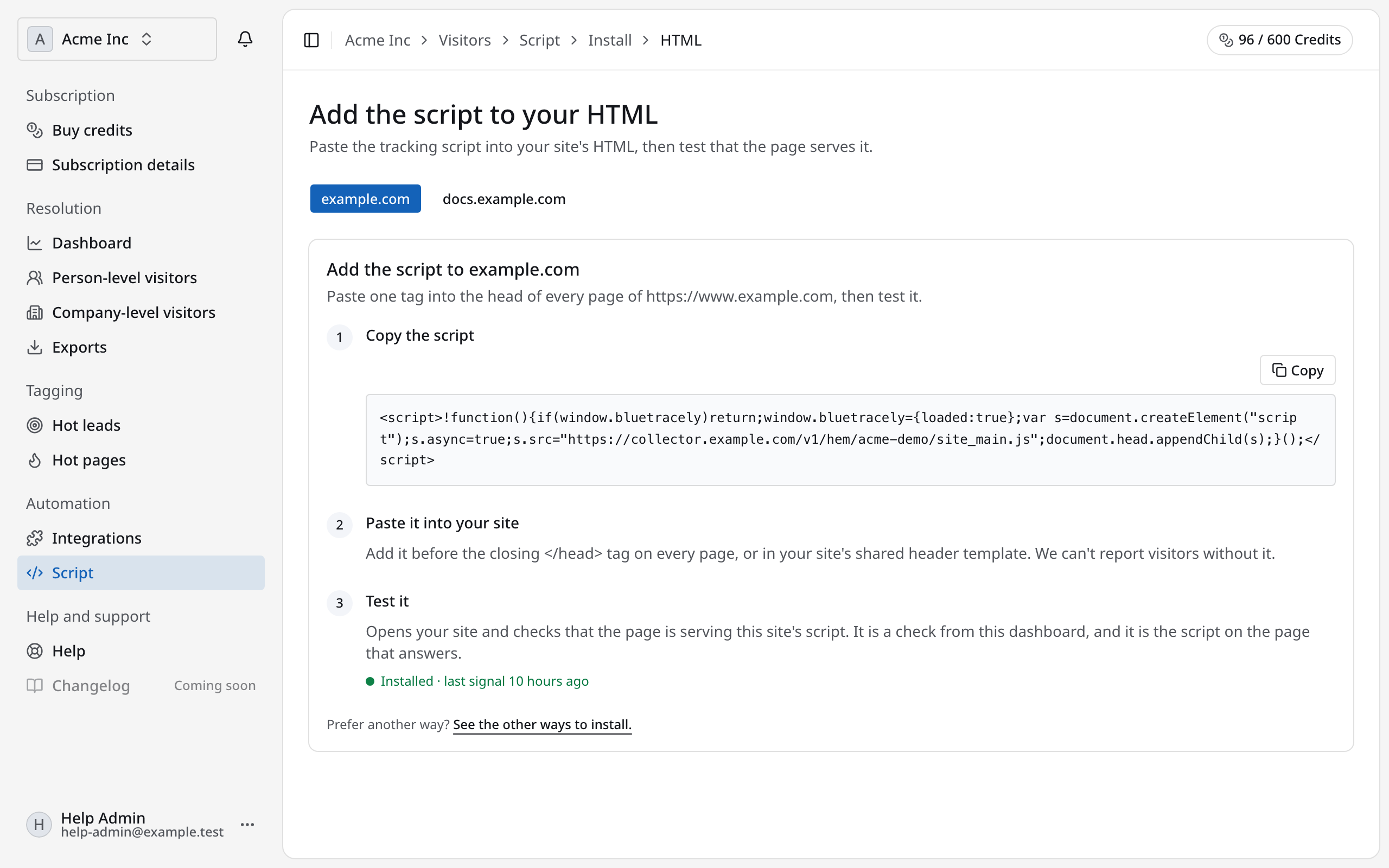
The snippet is a single <script> tag made for your domain. Paste it as it is.
Open the file that holds your page head
Open your website's files with the tool you normally use, such as your hosting provider's file manager, an FTP client or your code editor. Find the file that contains the <head> of your pages:
- If your site uses a shared header template, such as
header.phpor a layout file, use that one. Every page that uses the template gets the snippet. - If each page is its own HTML file, such as
index.html, add the snippet to every page.
Paste the snippet
- Paste the snippet just before the closing
</head>tag. - Don't change or remove any existing code, and don't place the snippet inside another tag.
- Save the file, and upload or deploy it to your live site.
- Clear any cache your site or hosting uses.
The result looks like this, with your own snippet in place of the comment:
<head>
	<meta charset="utf-8" />
	<title>Your page</title>
	<!-- Your Blue Tracely snippet goes here, just before </head> -->
</head>
Check the installation
Open your site, then go back to the Script page and select Test script next to your domain, or select Check installation under Test it on the Add the script to your HTML page. When the script answers, you'll see "The script is installed on your website." See Verifying Your Script Installation.