This guide shows how to add the Blue Tracely snippet to a Shopify store by editing your theme's code.
Before you begin
- Editing theme code needs some comfort with HTML. Shopify recommends duplicating your theme first as a backup. See Shopify's guide to editing theme code.
- Changes to theme code can be lost when you switch or update your theme. Check that the snippet is still there afterwards.
- The domain on your Script page must be the domain your store is served on. See Installing Your Blue Tracely Tracking Script.
Copy your snippet
- On the Script page, select Install next to your domain.
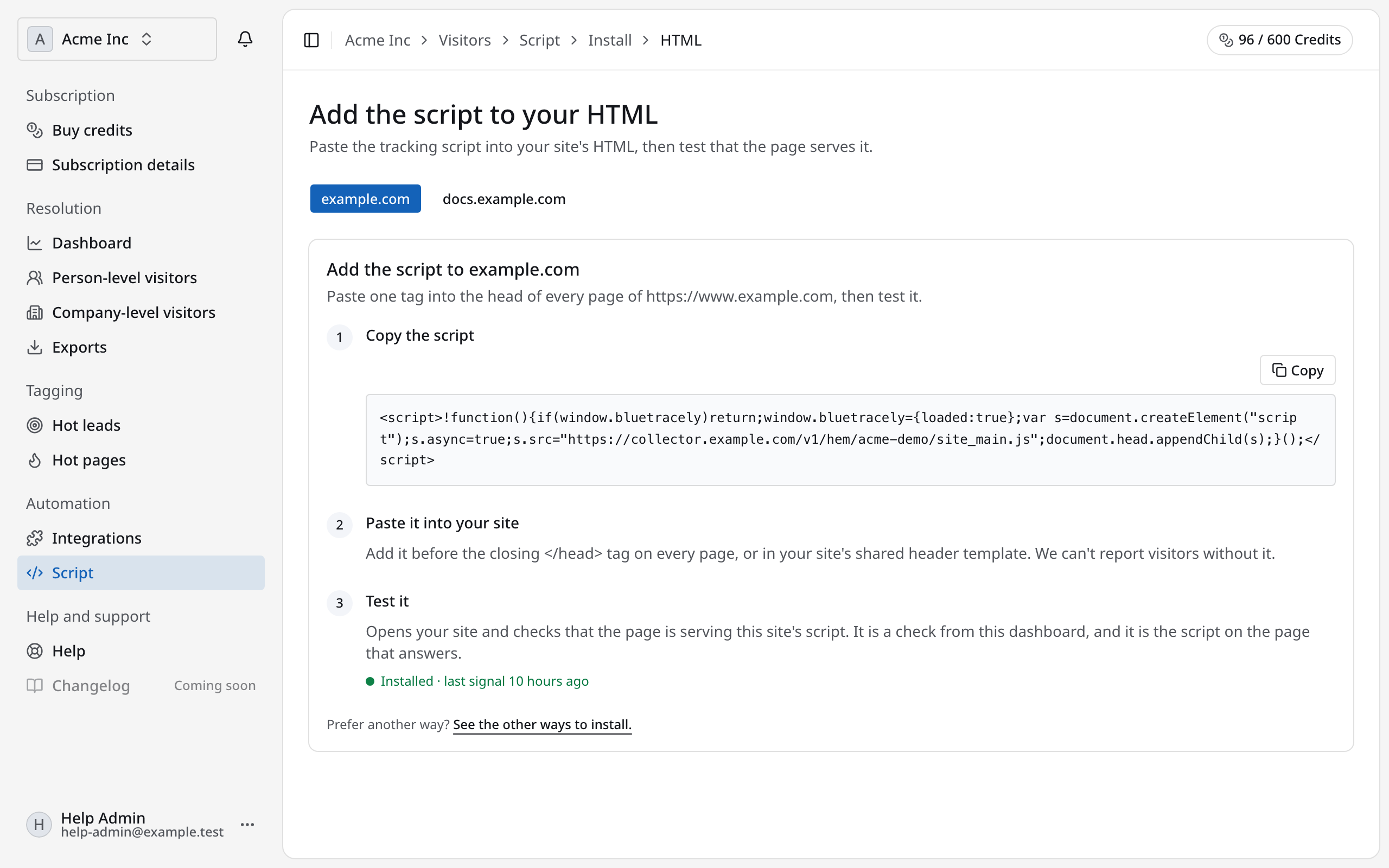
- Select Add it to your site's HTML.
- Under Copy the script, select Copy.
Add the snippet to your theme
- In your Shopify admin, open the code editor for your live theme, as Shopify's guide to editing theme code describes.
- Open your theme's main layout file, usually
theme.liquidin the Layout folder. This file wraps every page of your store. - Paste your snippet, unchanged, just before the closing
</head>tag. - Save the file.
Adding the snippet to a single template instead of the layout file limits it to the pages that template renders.
Check the installation
Open your store, then go back to the Script page and select Test script next to your domain. When the script answers, you'll see "The script is installed on your website." See Verifying Your Script Installation.