This guide shows how to load the Blue Tracely snippet in a Next.js application with Next.js's <Script> component (next/script). It covers the App Router (an app/ directory) and the Pages Router (a pages/ directory).
Before you begin
You need:
- Your domain on the Script page. See Installing Your Blue Tracely Tracking Script.
- Access to your Next.js project's code.
Copy your snippet
- On the Script page, select Install next to your domain.
- Select Add it to your site's HTML.
- Under Copy the script, select Copy.
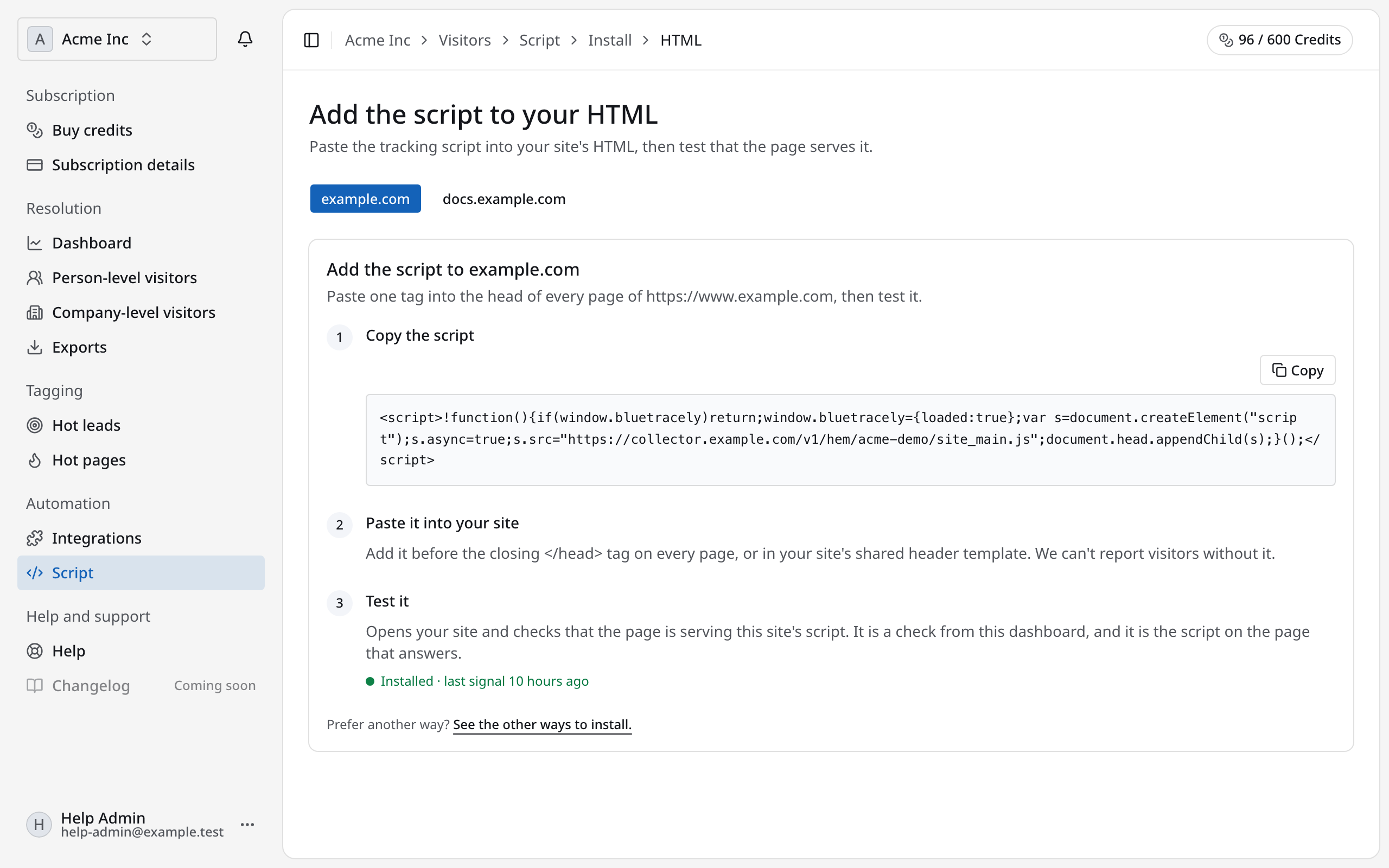
The snippet is one <script> tag. In Next.js you use only the code between <script> and </script>, unchanged, as the content of a <Script> component. That code contains no backticks, so it fits inside a JavaScript template literal as it is.
How the script behaves in a Next.js app
The script reports one page view per full page load. When a visitor moves between pages with Next.js's client-side navigation (for example next/link), no new page loads, so those later pages aren't reported. The visitor can still be identified from the page they loaded first.
Don't try to load the snippet again on every route change: it does nothing when the script is already on the page. See Single Page vs. Multi-Page Sites: A Data Collection Perspective.
Option 1: App Router
Add the <Script> component to your root layout, app/layout.tsx (or app/layout.js), so it's on every page:
import Script from "next/script";

export default function RootLayout({
	children,
}: {
	children: React.ReactNode;
}) {
	return (
		<html lang="en">
			<body>
				{children}
				<Script id="blue-tracely" strategy="afterInteractive">
					{`/* Paste the code between <script> and </script> from your snippet here */`}
				</Script>
			</body>
		</html>
	);
}
Option 2: Pages Router
Add the <Script> component to your custom app, pages/_app.tsx (or pages/_app.js):
import type { AppProps } from "next/app";
import Script from "next/script";

export default function App({ Component, pageProps }: AppProps) {
	return (
		<>
			<Script id="blue-tracely" strategy="afterInteractive">
				{`/* Paste the code between <script> and </script> from your snippet here */`}
			</Script>
			<Component {...pageProps} />
		</>
	);
}
In both options, the id is required by Next.js for inline scripts. For the component's options, see the Next.js documentation for the Script component.
Deploy and check
- Deploy your changes.
- Open your live site, then go back to the Script page and select Test script next to your domain. When the script answers, you'll see "The script is installed on your website." See Verifying Your Script Installation.
- If your app sets a Content Security Policy, make sure it allows the script. See Troubleshooting: Check for Content Security Policies (CSP) Issues.
Don't load the script file directly with <Script src="...">. The snippet sets things up before the file loads, and without it Test script reports that your website is running a different version of the script.