This guide shows how to add the Blue Tracely snippet to every page of a Webflow site through its site-wide custom code settings.
Before you begin
- Webflow only offers custom code on certain workspace and site plans. See Webflow's guide to custom code in head and body tags.
- The domain on your Script page must be the domain your Webflow site is published on. See Installing Your Blue Tracely Tracking Script.
Copy your snippet
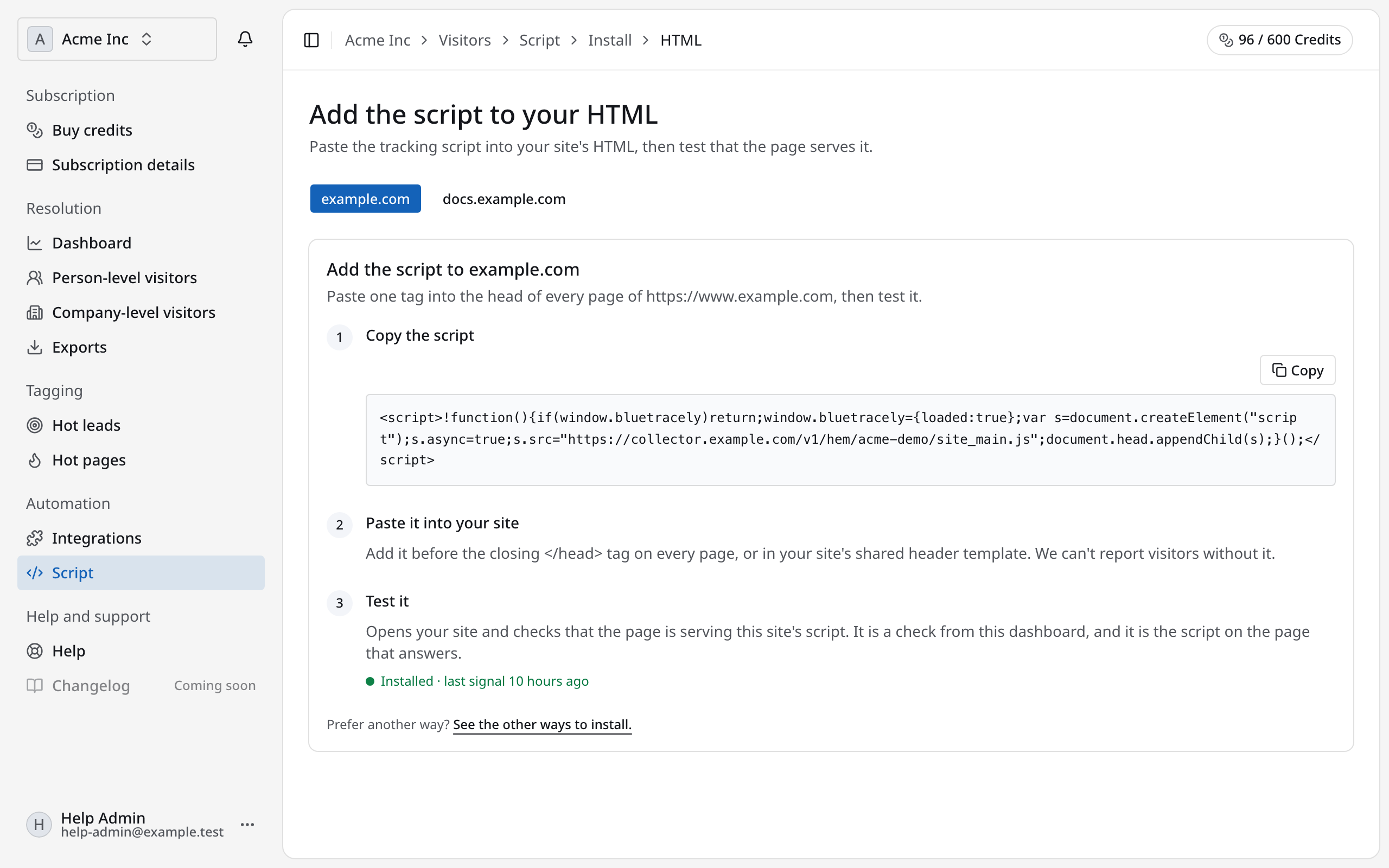
- On the Script page, select Install next to your domain.
- Select Add it to your site's HTML.
- Under Copy the script, select Copy.
Add the snippet in Webflow
Following Webflow's custom code guide:
- In your site settings, open the Custom code tab.
- Paste your snippet, unchanged, into the Head code section.
- Save your changes.
- Publish your site. Custom code only reaches your live site once it's published.
Check the installation
Open your published site, then go back to the Script page and select Test script next to your domain. When the script answers, you'll see "The script is installed on your website." See Verifying Your Script Installation.