The Script page is where you control everything about the tracking script on your websites. Open it from the sidebar under Automation > Script. This article walks through each part of the page and links to the detailed guides.
Every member can see the Script page. Only owners and admins can change it.
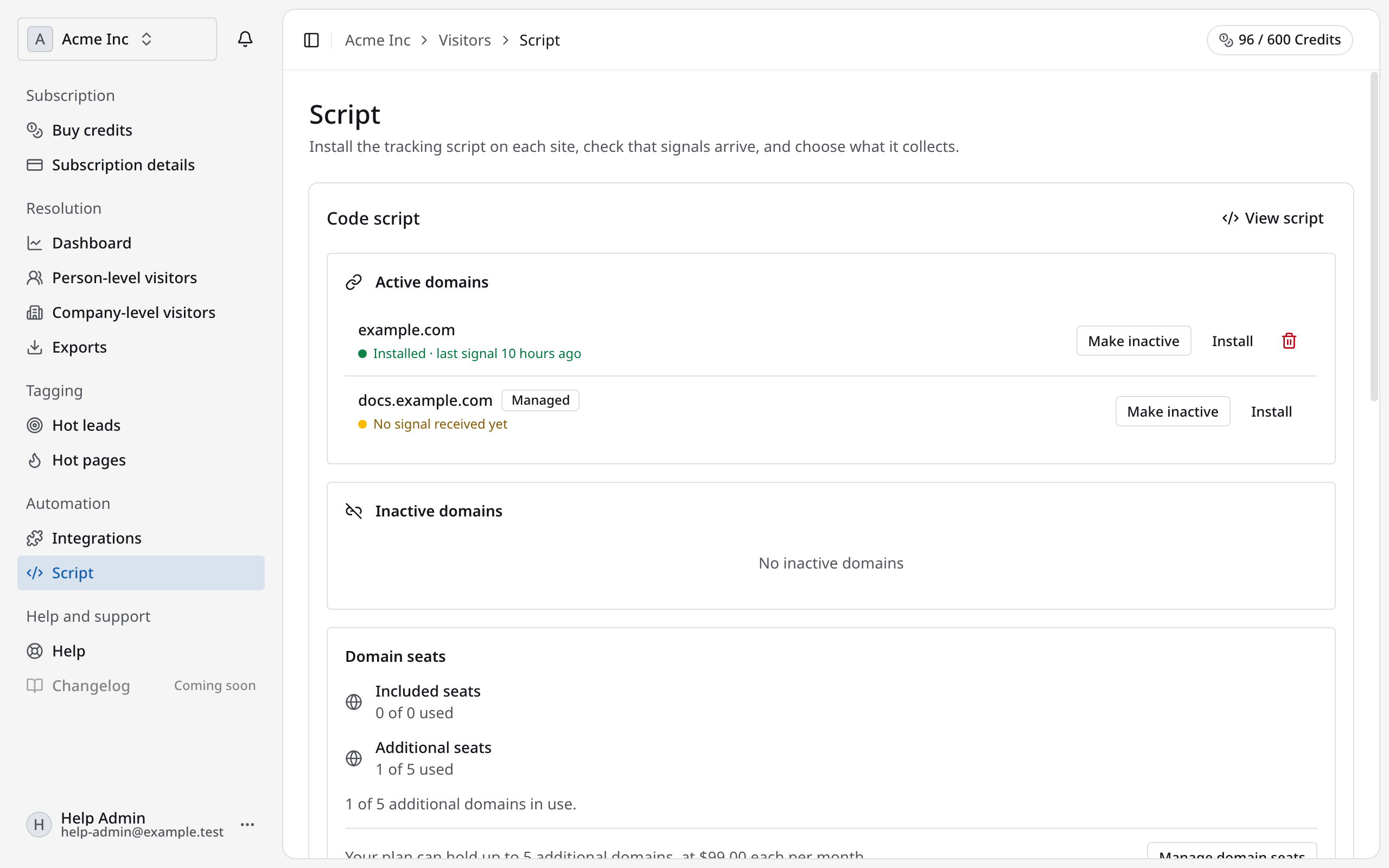
The Code script card
Your domains
Your domains are listed under Active domains and Inactive domains. Each one shows a status line:
| Status | Meaning |
|---|---|
| Pending | The script for this domain isn't live yet. Select Check again after a moment |
| No signal received yet | The script is live, but no visit has been reported from your site yet |
| Installed · last signal | Visits are arriving, with how long ago the last one came in |
| Collection is off | The domain is inactive, so nothing is collected |
A Verified mark appears next to a domain after an owner or admin runs a successful check.
Next to each domain:
- Test script checks that the script answers from your site. See Verifying Your Script Installation.
- Make inactive pauses collection on the domain. Make active starts it again.
- Install opens the installation options for that domain.
- The trash icon deletes the domain.
Getting the tracking script
Select View script at the top of the card, or Install next to a domain. The Install the script page offers four ways to install it: Add it to your site's HTML, Email it to a teammate, WordPress and Google Tag Manager. See Installing Your Blue Tracely Tracking Script.
To send the script to the person who edits your website, choose Email it to a teammate, enter their address under Teammate's email and select Send email.
Domain seats and adding a domain
The Domain seats section shows your Included seats and Additional seats, and how many are in use.
To add a domain, select Add a Domain, enter it under Add a domain, such as example.com, and select Add domain. Read Best Practices for Adding a Domain to Blue Tracely first. For more than one domain, see Add Multiple Domains to Your Blue Tracely Account.
Deleting a domain
- Select the trash icon next to the domain.
- Select Delete domain to confirm.
Visitors on that domain are no longer identified, and the script installed there stops working for good. If you add the domain again, it gets a new script, which you need to install in place of the old one.
A domain marked Managed was set up for you and can't be deleted from this page.
Visitor capture settings
These settings choose when the script collects visitors. They apply to one domain at a time: if you have more than one, pick it under Capture settings for.
| Setting | What it does |
|---|---|
| URL restrictions | Run the script on every page except the ones you list, or only on the ones you list. See URL Restrictions |
| Repeat visitor collection | On by default. When off, returning visitors aren't collected again for 30 days and don't use credits. See Preventing Repeat Visitor Collection |
| Company-level collection | On by default for a new domain. When no person is found, the visitor's company is identified from its network. See Company-Level Identification |
| International company tracking | Also identify companies outside the countries your account is set up for. See Global Visitor Tracking |
Select Save capture settings to apply your changes, or Discard to undo them.
Domain Exclusion List
The Domain Exclusion List keeps visitors with certain email domains, such as your existing clients or your own team, out of your results. It applies to all your domains and is available on the Pro and Pro+ plans. Select Manage list to edit it. See Domain Exclusion List.
Troubleshooting
- A domain stays on Pending. Select Check again. If it doesn't change, see Troubleshooting: No Collection.
- Test script can't find the script. See Troubleshooting: Script Verification Error Messages.
- Add domain is unavailable. The message under Add a domain explains why, for example that all your domain seats are in use.
- Buttons can't be selected. Only owners and admins can change the Script page. Ask one of them, or see Understanding Blue Tracely Company Account Structure.