Each identified visitor has a detail panel with everything Blue Tracely knows about them. This article explains how to open it and what each tab shows.
Opening a person's details
On Person-level visitors, select the person's row. The panel opens on the right.
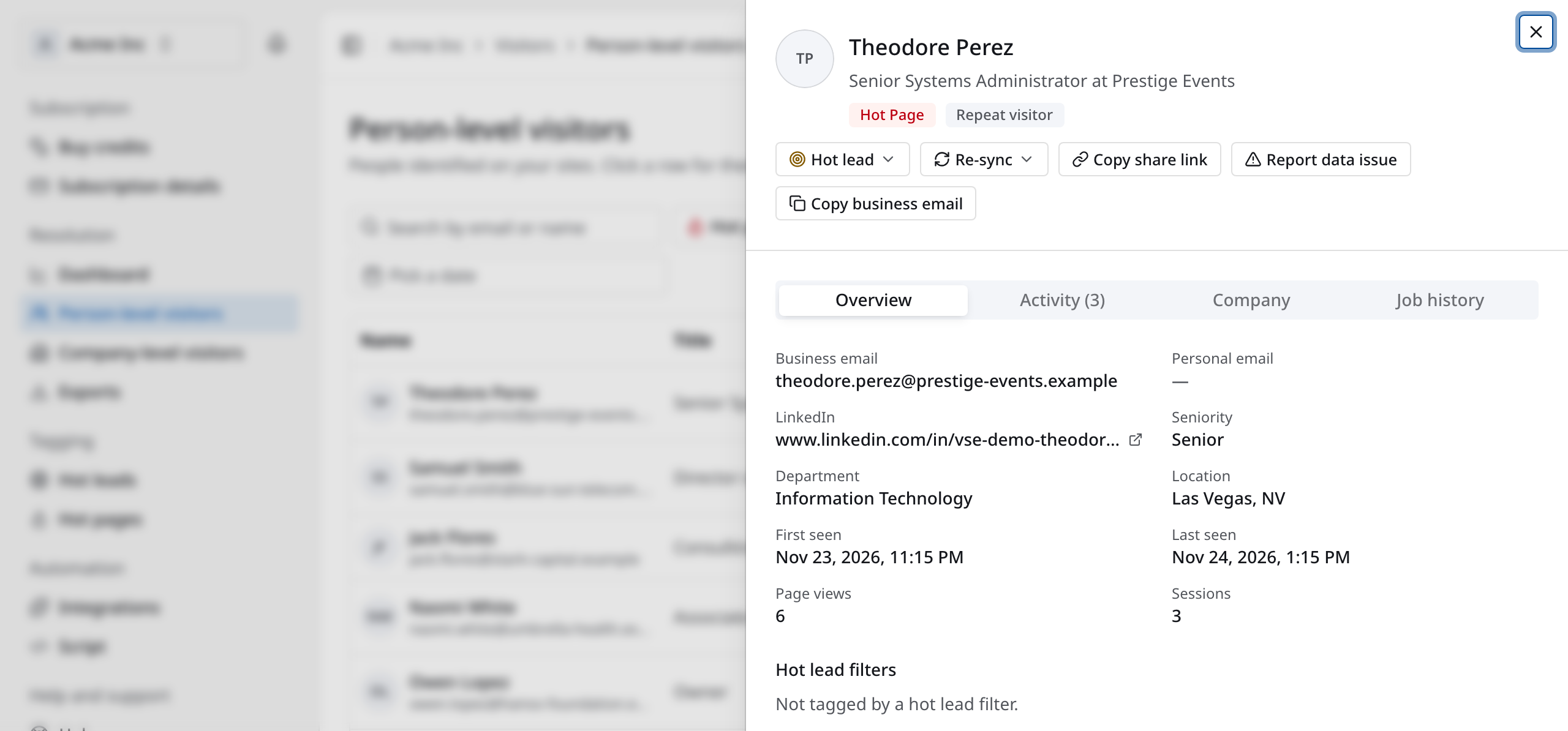
At the top you'll see the person's name and photo, their title and company, their tags (such as Hot Lead, Hot Page or Known in CRM), and Repeat visitor if they've been seen in more than one session.
The panel has four tabs:
| Tab | What it shows |
|---|---|
| Overview | Contact details, visit summary, hot lead filters and deliveries to your integrations |
| Activity | Every session and page view, with the number of sessions in brackets |
| Company | Details about the company the person works for |
| Job history | The person's work history |
Overview
- Business email and Personal email, on Pro and Pro+. On other plans, these rows say the email isn't included in your plan. A dash means no address was found.
- LinkedIn, a link to the person's profile.
- Seniority, Department and Location (the city and state from their profile).
- First seen, Last seen, Page views and Sessions.
Below these:
- Hot lead filters lists the hot lead filters the person matches, or "Marked manually" if someone tagged them by hand. On plans without hot leads, it says "Hot leads are not included on this plan."
- Deliveries lists each integration the person was sent to, when, and the result. If none, it says "Not sent to any integration yet."
Activity
Activity is available on the Starter, Pro and Pro+ plans. On the Free plan, it says "Pageview history is not included on this plan".
Page views are grouped into sessions, newest first. Each session shows when it started, how many page views it had, when it ended and how long it lasted. Each page view shows:
- the page title and address, which you can open;
- the referrer, or "No referrer";
- the UTM campaign, when the visit had one;
- the date and time, and a Hot Page tag when the page is one of your hot pages.
Company
The Company, Website, Industry, Employees, Estimated revenue, the company's LinkedIn page and Location.
Job history
Each past and current role, with its company and dates. A current role ends with "Present". If none is known, it says "No job history for this person."
Actions
The buttons at the top of the panel:
| Button | What it does | Who can use it |
|---|---|---|
| Hot lead | Tag the person with one of your hot lead filters, or Without a filter, or remove their hot lead tags. Pro and Pro+ | Owners and admins |
| Re-sync | Send the person again to one of your active integrations | Owners and admins |
| Copy share link | Copy a link that opens this panel, to share with teammates in your organization | Everyone |
| Report data issue | Tell us what looks wrong with the profile | Everyone |
| Not this person | Mark the profile as not the person who visited: it's hidden from profiles, exports and counts, and not delivered again | Owners and admins |
| Copy business email | Copy the person's business email address | Everyone, when there is one |
See Manually Tagging or Untagging a Profile as a Hot Lead, Manually Syncing a Profile in Blue Tracely, Reporting Erroneous Data and Understanding Tracking Risk Labels: How Each Visit Was Identified.
Opening a company's details
On Company-level visitors, select the company's row. The panel shows the company's name, its LinkedIn link and its location, with two tabs:
- Company details: Company, Employees, Revenue, Website and Last seen.
- Activity: the pages visitors from that company viewed.
Select Copy share link to share the company with a teammate.