The Login history on the Users page shows where a member is currently signed in to Blue Tracely. It helps you spot access you don't recognize, check a device during a security review, or troubleshoot access problems.
Who can see it
- Every member can see their own login history.
- Owners and admins can see the login history of any member of the organization.
Viewing a login history
- Open the account menu at the bottom of the sidebar and select Users, or go to Users.
- Under Active Members, find the member.
- Select Login history next to them.
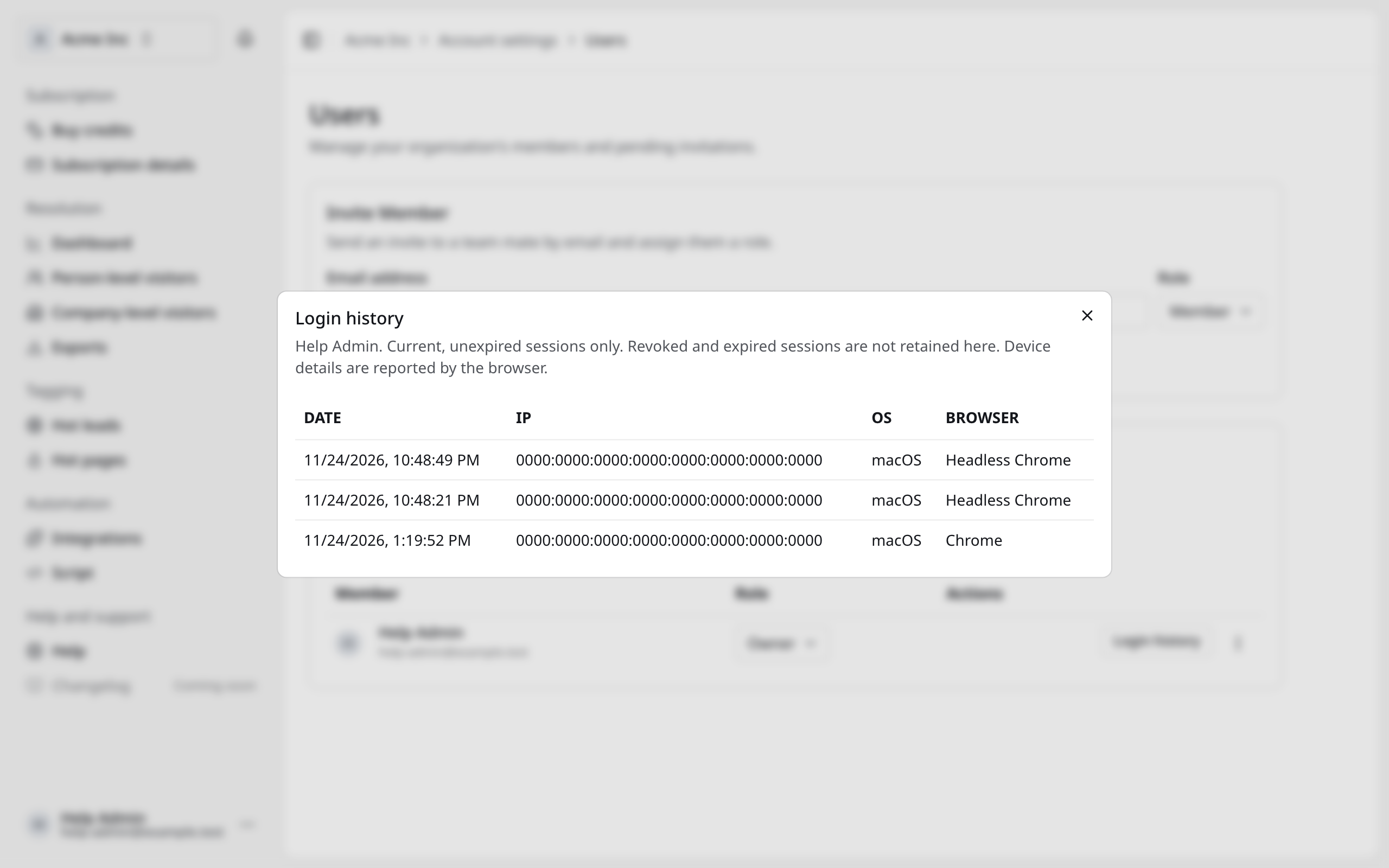
What it shows
Each row is one session, newest first:
| Column | What it shows |
|---|---|
| DATE | When the member signed in |
| IP | The IP address the session was started from, or "Unknown" |
| OS | The operating system, such as macOS, Windows, iOS or Android |
| BROWSER | The browser, such as Chrome, Safari, Edge or Firefox |
If the member isn't signed in anywhere, it says "No current login sessions."
Important notes
- Current sessions only. The list shows sessions that are still active. Sessions that were signed out, revoked or expired aren't kept here, so it isn't a full record of past sign-ins.
- Device details come from the browser. The operating system and browser are what the browser reports, and aren't verified.
Signing out a device
The login history is read-only. To sign out one of your own devices, open the account menu, select Profile, open the Sessions tab and select Revoke next to the device. See Logging Out of the Dashboard.
To end someone else's access to your organization, remove them from the Users page. See Adding or Removing Dashboard Users.