You can sign in to the Blue Tracely dashboard in three ways. This article explains each one, and how to add a second step with two-factor authentication.
Go to the sign-in page. It's titled Sign in to your account.
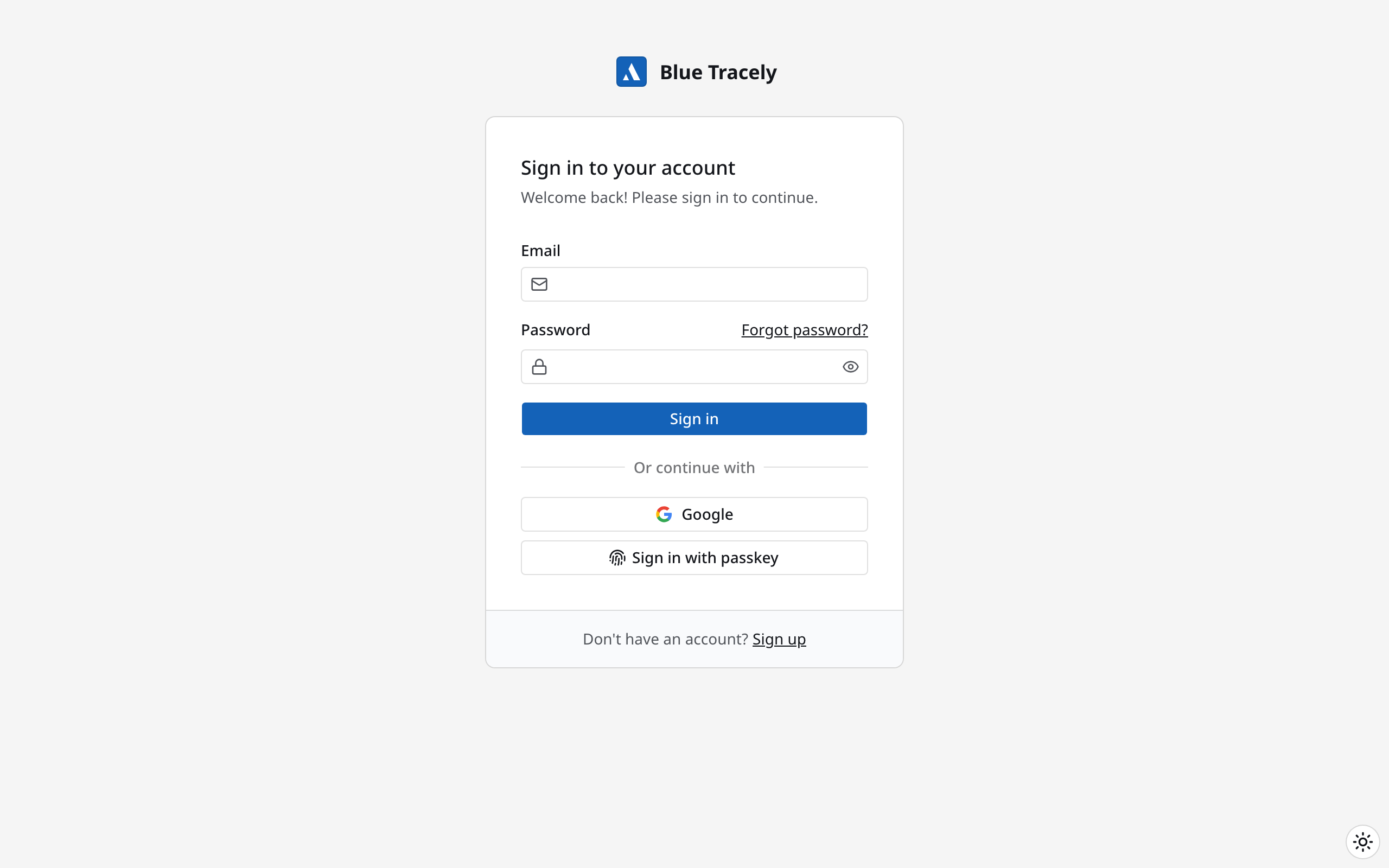
1. Email and password
- Enter your Email and Password.
- Select Sign in.
If you created your account with an email address and password, you need to verify that address before your first sign-in. If it isn't verified yet, signing in sends you a new verification link and opens Verify your email. See Troubleshooting: Registration.
If you don't remember your password, select Forgot password? above the Password field. See Troubleshooting: Login.
2. Google
Under Or continue with, select Google and choose your Google account.
If you signed up with Google, use this option every time, or set a password for your account later (see Managing Your Individual User Account). You can also link Google to an account you created with a password, under Connected accounts.
3. Passkey
A passkey lets you sign in with your device's own security, such as Touch ID, Face ID, Windows Hello or a security key, instead of a password.
- Select Sign in with passkey.
- Follow your browser's or device's prompt.
Your device must confirm it's you with a PIN or biometric. You need to add a passkey to your account before you can use it. See Authentication Passkeys.
Two-factor authentication
Two-factor authentication adds a code from an authenticator app to the email-and-password sign-in. Once it's on:
- Sign in with your email and password.
- On Verify your account, enter the 6-digit One-time password from your authenticator app, and select Verify.
If you don't have your phone, select Use a backup code instead and enter one of the backup codes you saved when you set it up. Each backup code works once.
To turn it on, see Managing Your Individual User Account.
A security check may appear on the sign-in form. Sign in stays unavailable until you complete it.